Best Images for Cookie Cutter Generation
Learn which images give CutterForge the cleanest threshold, preview, and cookie cutter STL results.
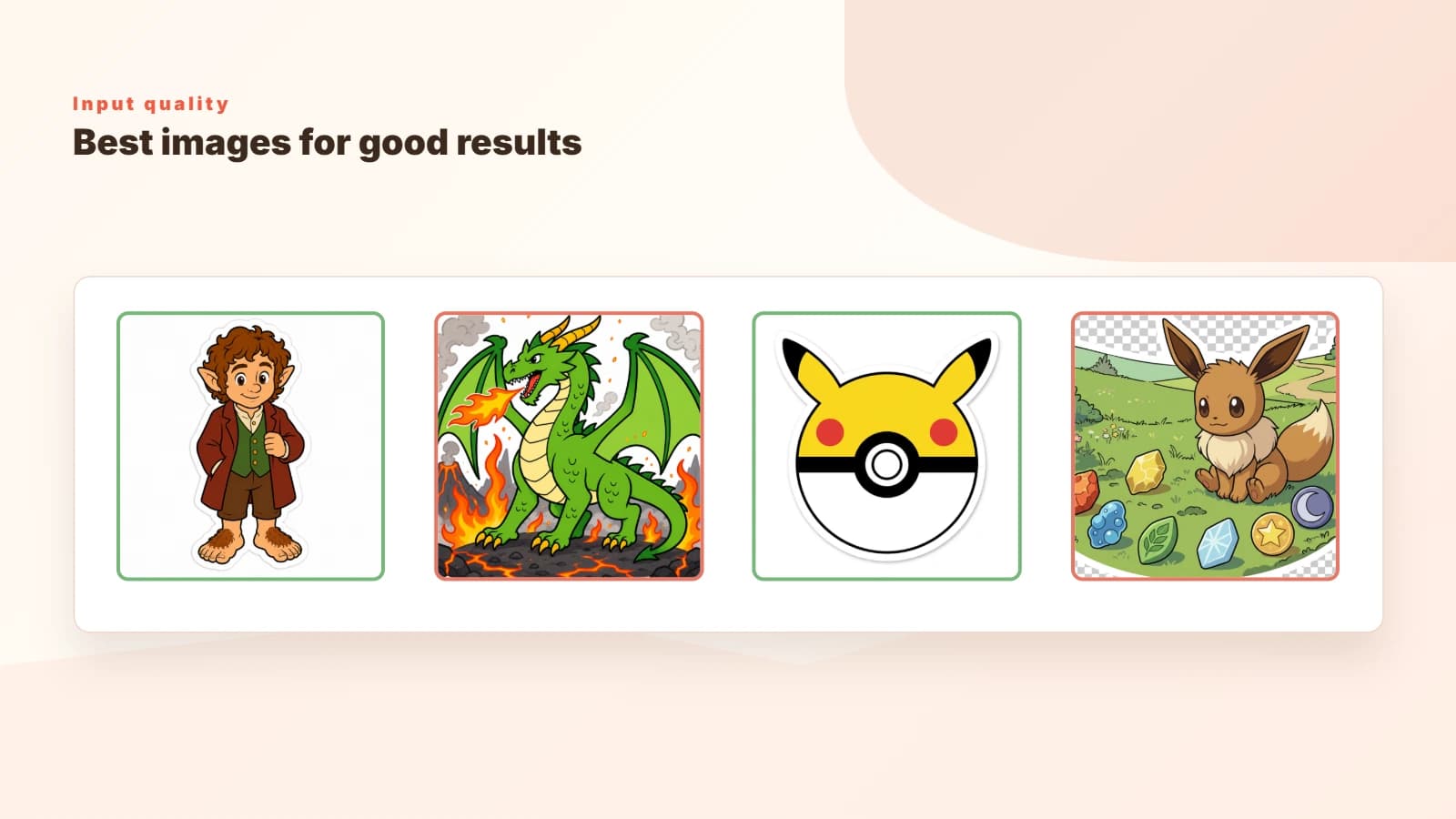
The best input looks simple before conversion
Good cutter images have clear contrast, one main subject, a strong outside boundary, and minimal background. If you can understand the subject as a small black silhouette, it is probably a strong candidate.
Line art, logos, icons, stickers, coloring-page style drawings, and bold clipart usually outperform detailed photography.
- Best: single subject, high contrast, plain background.
- Good: transparent PNG, simple logo, clean line drawing.
- Risky: full photos, textured art, thin outlines, complex scenes.
- Poor: screenshots, busy backgrounds, low-resolution thumbnails.
Why contrast matters
CutterForge uses the image controls to separate the subject from the background. High-contrast artwork gives the threshold slider a clean range to work with, while low-contrast images make it harder to isolate the subject.
If the image is a photo, use the photo workflow. If the image is artwork, use the image-to-cookie-cutter workflow. If you are unsure, start from the general generator and compare routes in preview.
- Use threshold for black-and-white separation.
- Use invert details when stamp details need to flip.
- Use preview to compare whether photo, image, or AI input gives the cleanest cutter.
Crop and simplify before upload
Cropping is one of the highest-impact edits you can make. It tells CutterForge what the subject is and removes noise before the editor generates the cutter preview.
Do not leave large empty margins, secondary objects, background props, or caption text in the file unless you want them influencing the cutter.
Ready to build it in CutterForge?
Upload a clean image, tune the threshold, and preview the cutter result.