How to Make a Cookie Cutter from a Logo
Turn a logo into memorable branded cookies for launches, client gifts, events, packaging inserts, and small business promotions.
Make branded cookies
Logo cookies are useful because they turn a brand into something people can hold, photograph, share, and remember. They work for launch parties, customer thank-you boxes, trade show giveaways, bakery collaborations, corporate events, wedding vendors, real estate gifts, and small business packaging inserts.
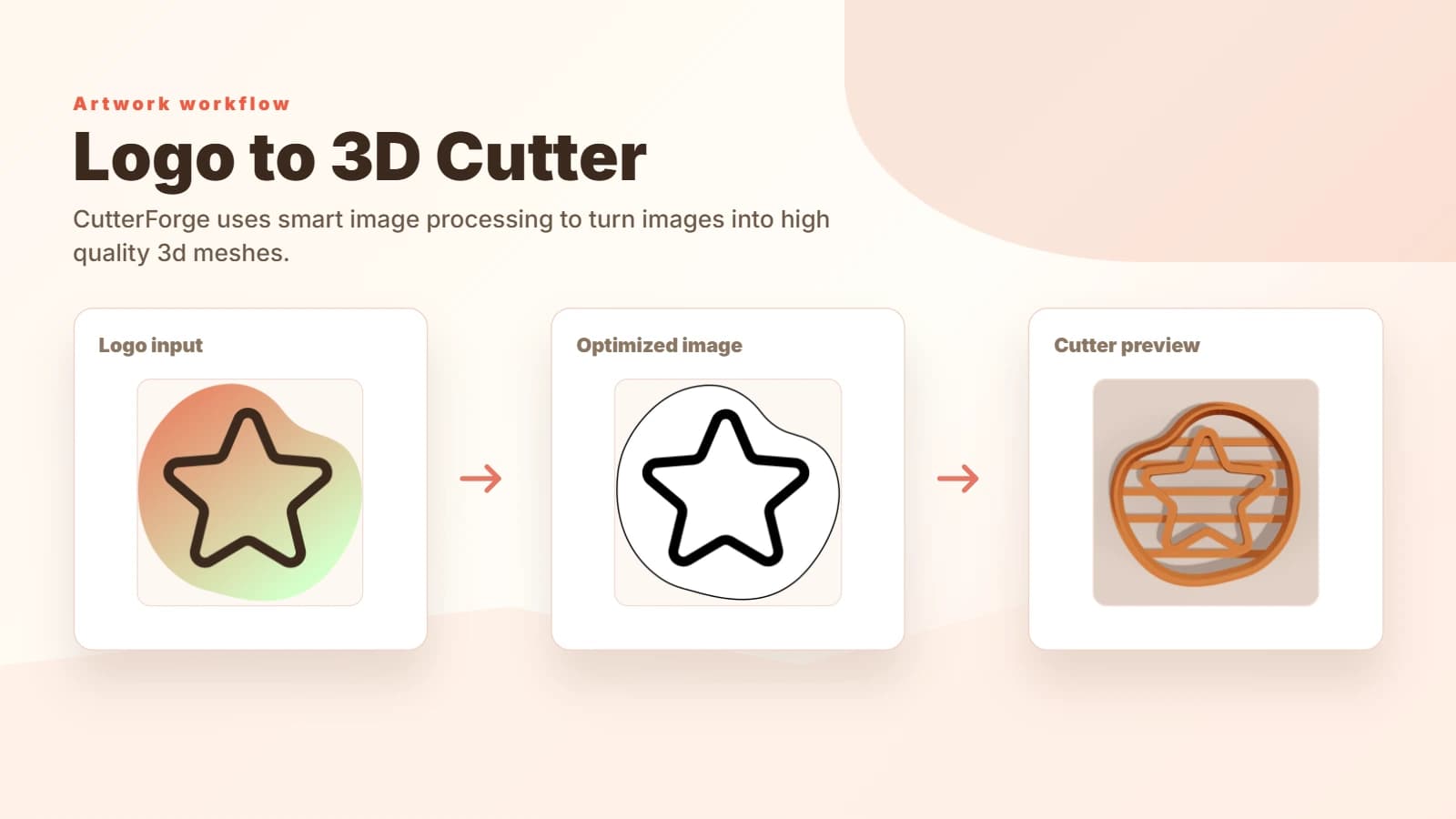
A good logo cutter does not need to reproduce every detail from the brand file. The goal is a cookie that still feels like the logo after cutting and baking. CutterForge helps by turning the logo artwork into a cutter preview instead of asking you to rebuild the mark in CAD.
- Use logo cookies for events, gifts, branded dessert tables, and customer packaging.
- Start with the most recognizable part of the logo, usually the icon or simple mark.
- For client work, use artwork you are allowed to reproduce.
- Think about how the baked cookie will read in a photo, not only how the source file looks on screen.
Start with a simple mark
The best logo source is usually a flat, high-contrast version: an SVG, transparent PNG, icon mark, badge, monogram, or one-color brand file. If the brand has a full lockup with a tagline, a mascot, a badge, and an icon-only version, start with the icon or badge before trying the full lockup.
Complex logos can still work, but they need cleaner decisions. Thin taglines, tiny registered marks, gradients, overlapping colors, detailed mascots, and narrow letter gaps often need to be simplified so the cutter preview stays readable.
- Use a high-resolution PNG, SVG export, or transparent background when possible.
- Remove small taglines unless the cookie will be large enough to keep them readable.
- Prefer bold shapes over thin outlines and tiny internal marks.
- If the logo depends on text, test the real cookie size before printing a full batch.
Let AI simplify it
When a logo is too detailed, use CutterForge's AI optimize step to clean up the artwork before generating the cutter preview. The optimization is meant to keep the brand recognizable while removing noise that does not help the physical cookie.
After optimization, check the cutter preview instead of judging only the flat image. Look for a clear outside wall, stamp details that are not overcrowded, and a final size that gives the design enough room. If the preview feels busy, use a simpler logo file, crop tighter around the mark, or let AI optimize a cleaner version before downloading the STL.
- Use AI optimize for gradients, fuzzy edges, low-resolution uploads, and overly detailed marks.
- Compare the optimized image with the cutter preview before exporting.
- Increase cookie size if important details need more room.
- Download the STL only after the preview still reads like the brand.
Ready to build it in CutterForge?
Upload a logo, let CutterForge optimize it for a cutter, preview the result, and download the STL.