Convert a simple logo into a cookie cutter STL
Use CutterForge for logo-inspired cookie cutters when the artwork is clean, high contrast, and legally cleared for your use. Upload the mark, preview the cutter, and export an STL for printing.
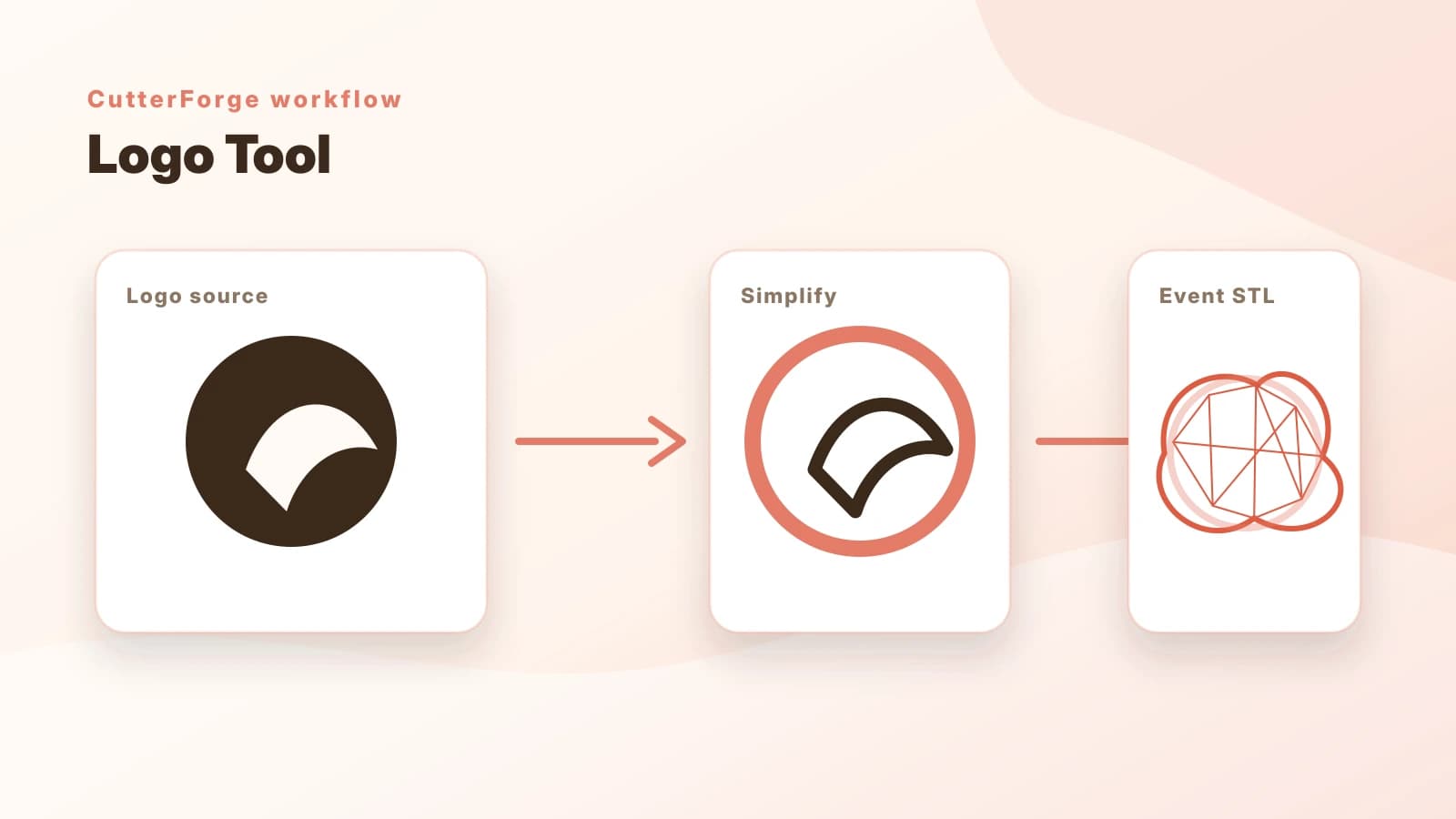
Built for the real path from idea to cookie cutter.
The best logo cutters come from bold icons, simplified marks, and artwork without gradients or tiny text.
Only convert logos you own, have permission to use, or are allowed to reproduce for the specific project.
A logo that looks good on a website may need simplification so the cookie cutter is strong and dough releases cleanly.
Four steps, then a file you can print.
- 01
Upload a single-color or high-contrast logo.
- 02
Check that small letters and icon details are thick enough.
- 03
Adjust size for cookie readability.
- 04
Download the STL and review it in your slicer.
Useful for more than one shape.
What this workflow produces
Example input
A bold one-color logo icon or simplified bakery mark without small legal text.
Example output
A printable STL cutter that follows the brand silhouette while simplifying fragile details.
Export details before you print
Files you get
- STL cutter file
- Logo-based project thumbnail
- Saved project state
Inputs supported
- PNG logos
- JPG logos
- Exported SVG artwork as PNG
- High-contrast marks
Slicers and printers
STL exports can be prepared in Bambu Studio, PrusaSlicer, OrcaSlicer, Ultimaker Cura and similar slicers for printers such as Bambu Lab, Prusa, Creality, Anycubic, Elegoo.
Use 1.0-1.2 mm for logo cutters, especially when the mark includes tight corners or small counters.
Printing tips
- Remove taglines and tiny lettering before upload.
- Use a larger cookie size for logos with internal details.
- Confirm that disconnected islands will make sense as cutter details.
Limitations to know
- Very detailed seals, badges, and small text usually need simplification.
- Gradients and shadows are not useful cutter geometry.
- You are responsible for rights and permissions around logo use.
AI, image upload, or text mode?
Use AI when
Use AI for a new mascot-style concept, not for exact logo reproduction.
Use image upload when
Use image upload for existing logo artwork that should guide the cutter shape.
Use text mode when
Use the text tool for a simple business name cutter when the exact logo is too detailed.
Avoid weak cutter files
Uploading a full horizontal logo with tiny tagline text.
Using a low-resolution logo pulled from a website header.
Ignoring trademark or client permission requirements.
Keeping gradients, shadows, or background boxes in the source file.
Common questions
What kind of logo works best?
Simple, bold, high-contrast marks work best. Complex badges and tiny typography usually need simplification.
Can I upload an SVG logo?
If you have SVG artwork, export a clean PNG first or use a high-contrast raster version suitable for upload.
Will small logo text print well?
Usually not unless the cutter is large. Remove tiny text or use the text tool for a separate readable design.
Can I sell logo cookie cutters?
Only if you have the necessary rights or client permission. CutterForge does not grant logo usage rights.
What wall thickness should a logo cutter use?
Start around 1.0-1.2 mm and increase if the logo has tight turns, large spans, or will be used repeatedly.
Which workflow is best for logos?
Use image upload for logo artwork. Use AI only for new concept art, and use text mode for simple word-based cutters.